Team and people
- Employees, groups and managers
- Live status: who is working right now
- Individual scorecards against expected hours
“Who is online right now?”
Connect Trackion to the AI app your team already uses. Org Admins and HR Managers can ask about hours, productivity, idle time and who is online, and get answers from live Trackion data.
Who was below their expected hours last week?
Used Trackion: weekly time summary
2 of 12 people were below their expected 40 hours last week:
• Sam R. – 31.5 h (79%), mostly short days on Thursday and Friday
• Jordan K. – 34 h (85%), one day off on Monday
Everyone else met or exceeded their expected hours. Want a day-by-day breakdown for either of them?
Questions you can ask
The AI app picks the right Trackion report, reads it and explains the result. It can read the same reports you use in Trackion, limited to the people you can already see.
“Who is online right now?”
“Who was below their expected hours last week?”
“Give me a weekly review for the Support team.”
“How did idle time change this month compared with last month?”
“Which projects took most of our time in the last 30 days?”
Three built-in prompts to start from: a weekly team review, one-to-one prep and a check for signs of overwork. Then ask follow-up questions.
“Prepare me for a one-to-one with an employee.”
Set up in three steps
Everyone signs in with their own Trackion account, so each person only sees what they can already see.
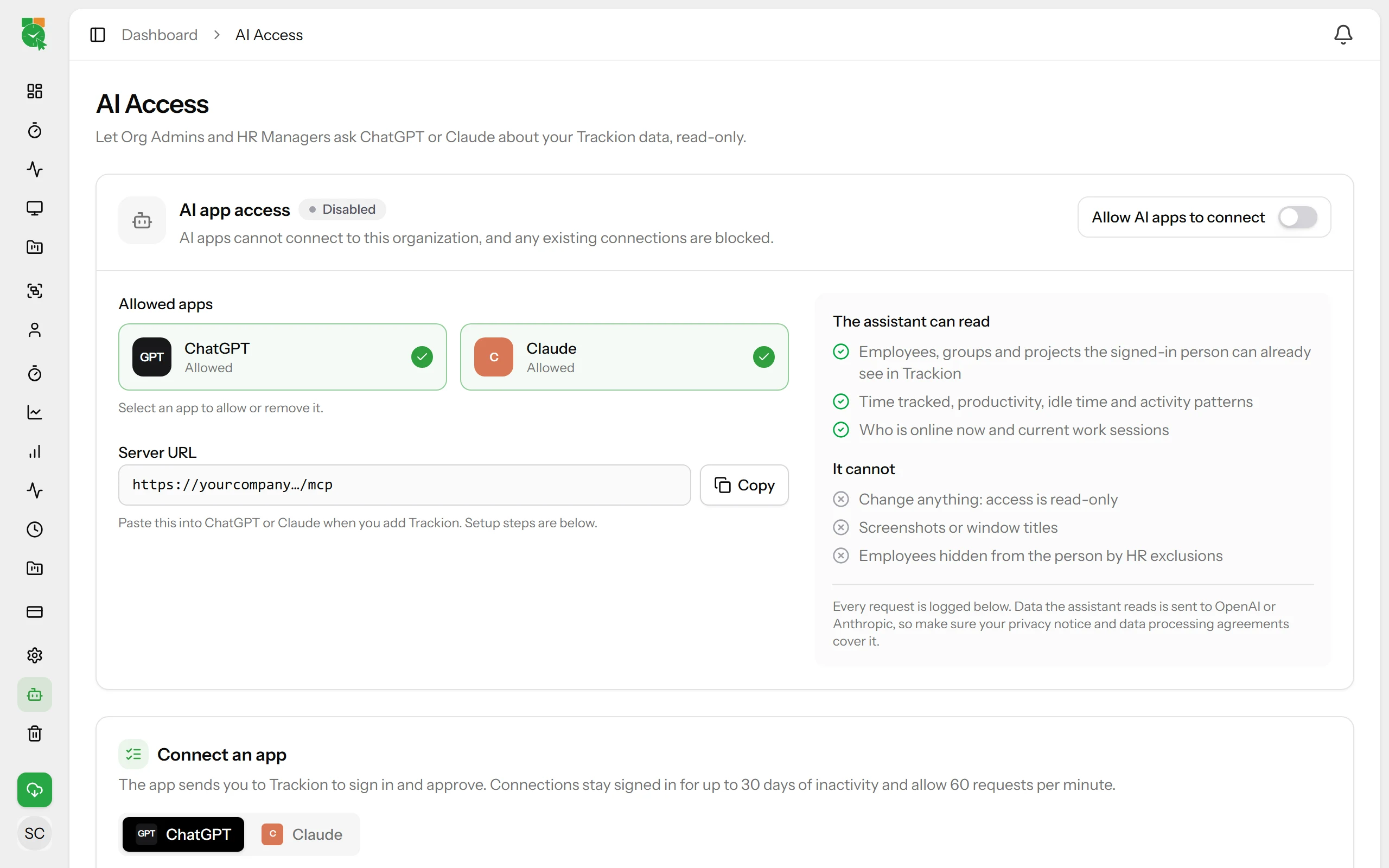
An Org Admin opens Settings → AI Access in Trackion, switches it on and chooses ChatGPT, Claude or both.
Copy your organization’s Trackion address and add it as a connector in ChatGPT or Claude.
The app sends you to Trackion to sign in and approve read-only access. Then just ask.
Safeguards
Answers are generated by the AI app you connect, so data it reads goes to OpenAI or Anthropic. Review your privacy notice and agreements before turning it on.
The AI app can read reports. It can never change employees, settings, projects or time records.
An Org Admin turns it on and chooses the allowed apps. Only Org Admins and HR Managers can connect.
Each person only sees the employees they can already see. HR exclusions still apply.
Screenshots and window titles are never shared with AI apps.
Every company has its own connection address and its data stays separate.
Every request is logged. Disconnect an app, or turn AI access off, and it stops immediately.
Supported apps
Exact steps for your organization are on the AI Access page inside Trackion. Command-line tools, code editors and direct API access are not supported.
FAQ
How the Trackion AI Assistant works, who can use it and what it can see.
Start your free trial, then turn on AI Access in Trackion and connect ChatGPT or Claude.