On this page
Most resistance to time tracking has little to do with the software. It comes from uncertainty. When a team hears "we are starting to track time" without context, people fill the silence with worst-case assumptions: that every keystroke is recorded, that personal browsing will be judged, or that the numbers will be used against them.
The good news is that this is a communication problem, and communication problems can be solved. Here is a practical plan for introducing time tracking in a way your team understands, trusts and actually uses.
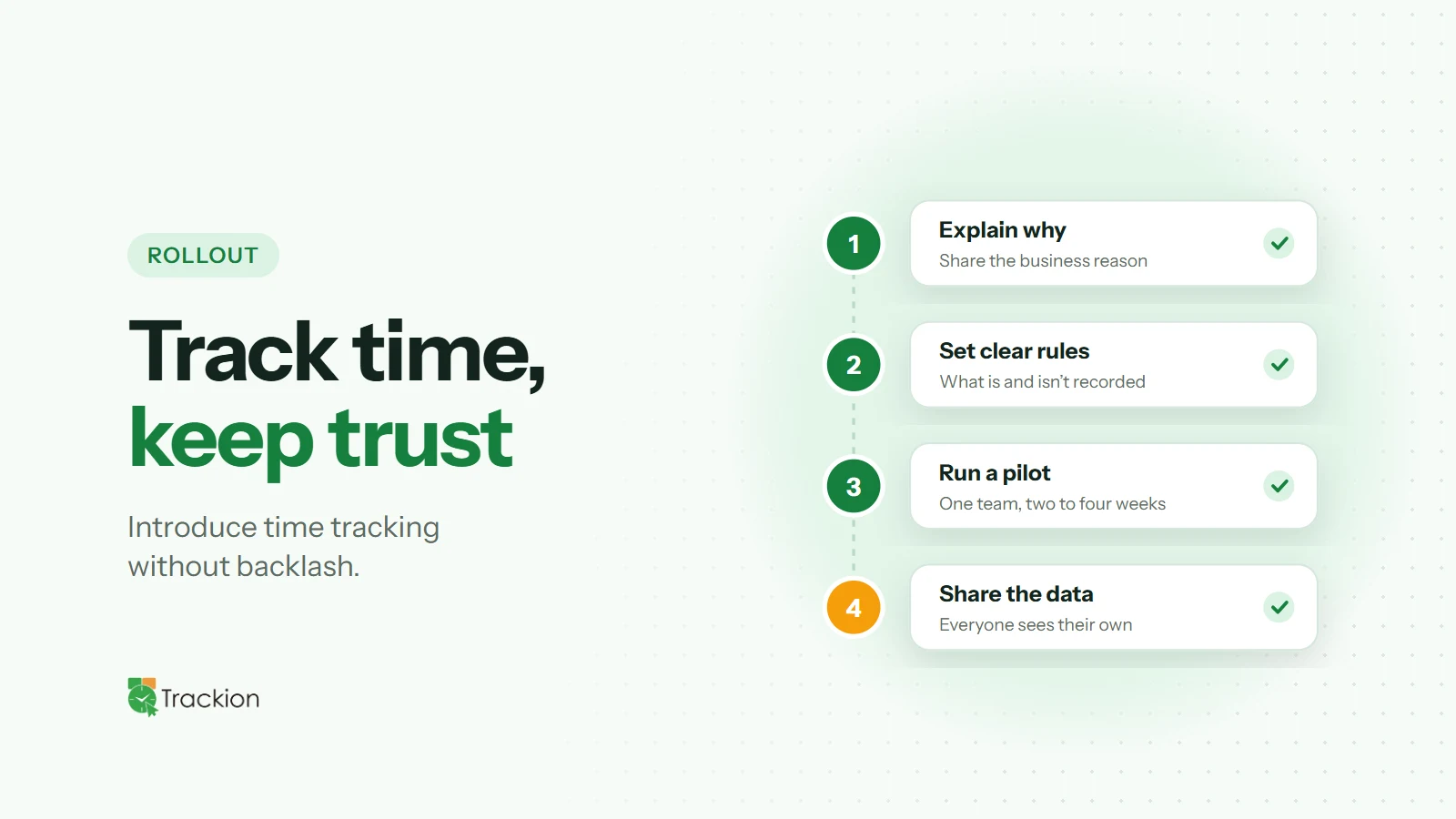
Start With the Business Reason
Before you choose settings or send an announcement, write down why you are introducing time tracking. Common, legitimate reasons include accurate payroll, fair client billing, better project estimates, spotting overload before it turns into burnout, and giving remote and hybrid teams a shared picture of how work gets done.
If you cannot explain the reason in two or three sentences, your team will not be able to either. A clear purpose also keeps the program focused, which protects you from collecting data you do not need.
Be Specific About What Is and Is Not Recorded
Vague announcements cause the most anxiety. Tell people exactly what the tool captures and what it does not. For example:
Work sessions and hours, recorded automatically while the desktop app is running
Screenshots at a fixed interval, if you enable them
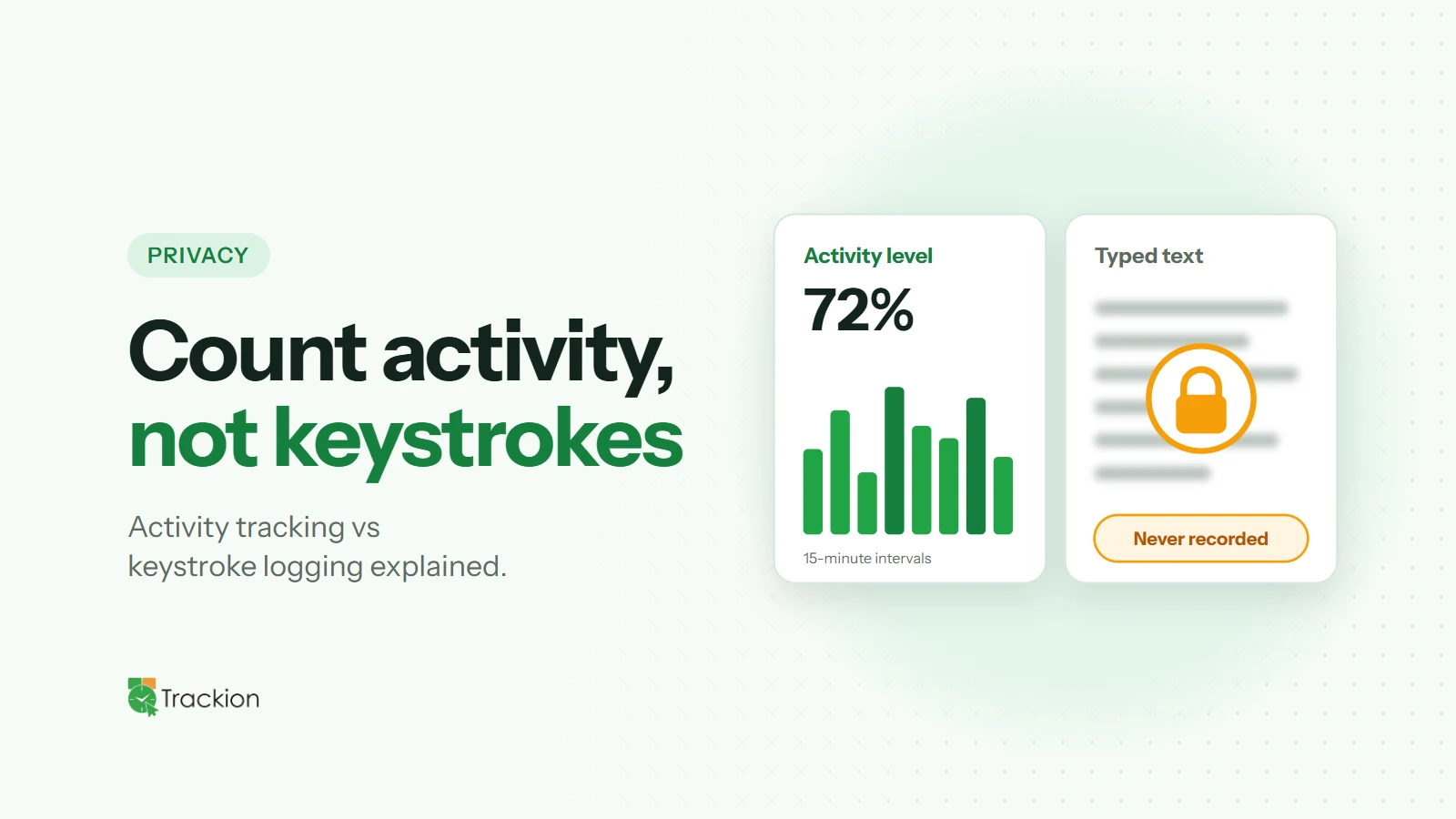
Keyboard and mouse activity levels, not the content of what anyone types
Which project a person has selected
Just as important is what is out of scope: time outside working sessions, the text people type, and personal devices that do not run the app. Put this in writing so nobody has to guess.
Decide Sensitive Settings With the Team
Settings such as screenshot frequency, data retention and who can see what are where trust is won or lost. Involve team leads, or a small group of employees, in those decisions. When people help shape the rules, they are far more likely to accept them.
Explain who will have access to the data. Managers usually need to see their own team, HR may need a wider view, and employees should always be able to see their own records.
Run a Short Pilot First
Start with one team or a group of volunteers for two to four weeks. A pilot lets you check that the setup reflects how people really work, catch confusing settings early and collect honest feedback. It also gives you internal advocates who can tell colleagues what the tool is really like.
At the end of the pilot, share what you learned and what you changed as a result. That simple step shows the team their feedback matters.
Show Employees What Is in It for Them
Time tracking is not only a management tool. Accurate records protect employees too: they make overtime visible, settle disputes about hours, support fair workload distribution and give people concrete evidence of their contribution in performance reviews.
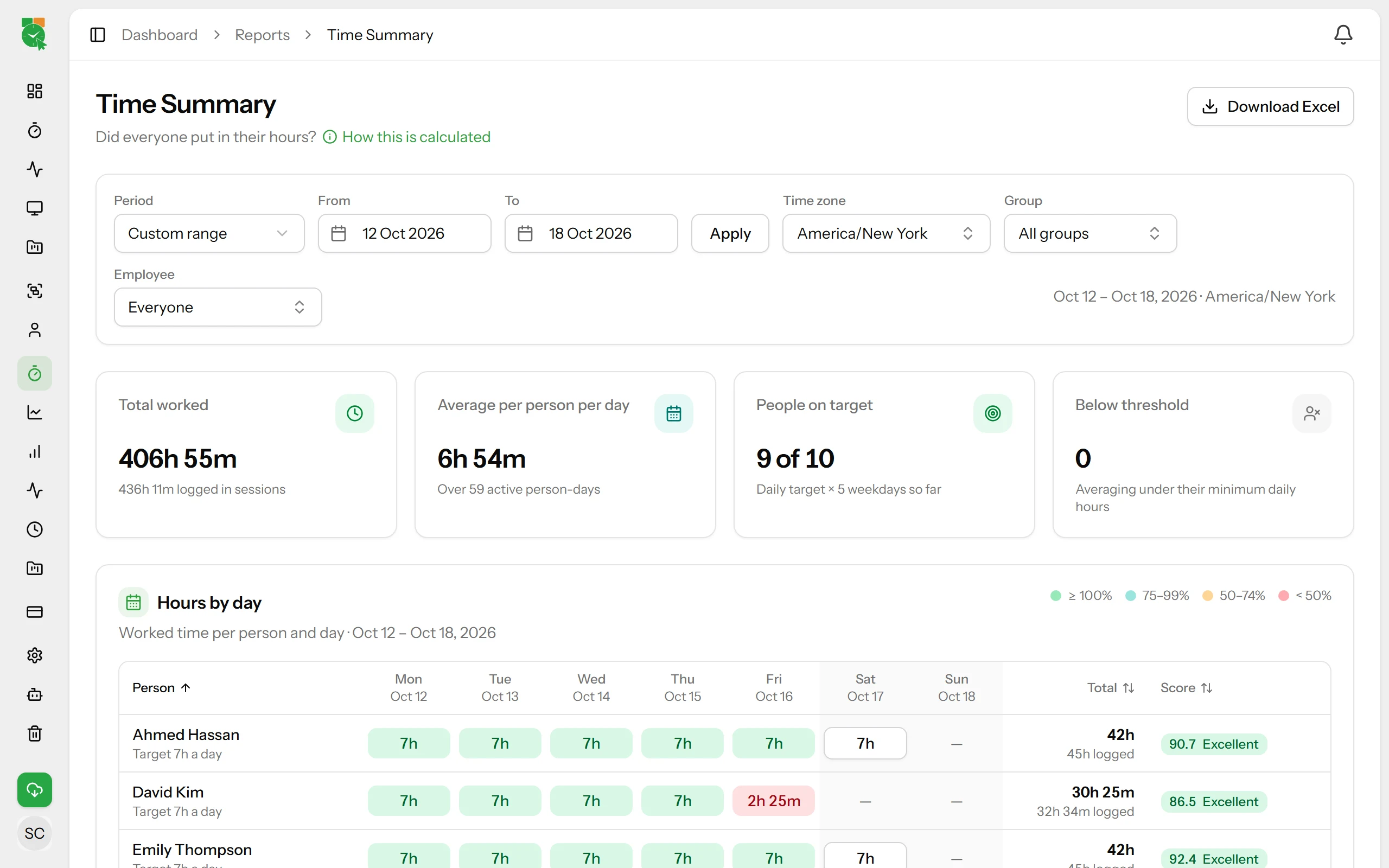
Give everyone access to their own data from day one. When employees can see their own hours, activity and screenshots, the tool feels like a shared record rather than a one-way camera.
Use the Data the Way You Said You Would
The fastest way to destroy trust is to announce one purpose and then use the data for another. If you said the goal was workload planning, do not suddenly use idle minutes as grounds for discipline. Look at patterns and trends rather than individual minutes, and start conversations with questions rather than conclusions.
Review the program after the first few months. Ask the team what is working and what is not, and adjust settings that create friction without adding value.
How Trackion Supports a Transparent Rollout
Trackion is built for exactly this kind of open rollout. The desktop app for Windows and macOS records work sessions automatically, so nobody fills in timesheets. Activity is measured as keyboard and mouse counts, never what anyone types, and screenshots can be set to every 3, 5 or 10 minutes, with the option to let employees delete their own screenshots for a set number of days.
Four roles, Org Admin, HR Manager, Manager and Employee, decide who sees what, and every employee can see their own data. Retention settings let you decide how long screenshots and activity are kept.
Final Thoughts
Introducing time tracking without backlash comes down to three things: a clear reason, honest communication about what is recorded, and using the data the way you promised. Get those right and time tracking becomes a shared source of truth instead of a source of suspicion.
If you are planning a rollout, you may also find our guide on measuring productivity without micromanaging useful.