On this page
Screenshot monitoring is one of the most powerful features in employee monitoring software, and one of the most sensitive. Used well, it helps verify work for clients, supports remote teams and gives context to time and activity data. Used carelessly, it can feel intrusive and erode trust quickly.
The difference comes down to how you set it up and communicate it. Here is how to use screenshot monitoring fairly and transparently.
Why Companies Use Screenshot Monitoring
Screenshots add context that hours alone cannot provide. Common reasons include:
Client verification: agencies and outsourcing teams can show clients what billed time was spent on
Remote team visibility: managers get a sense of work in progress without constant check-ins
Onboarding and support: screenshots can reveal where new team members get stuck
Security and compliance: some industries need evidence of how sensitive systems are used
Be clear about which of these applies to you. If none do, you may not need screenshots at all, and that is fine.
Choose a Proportionate Interval
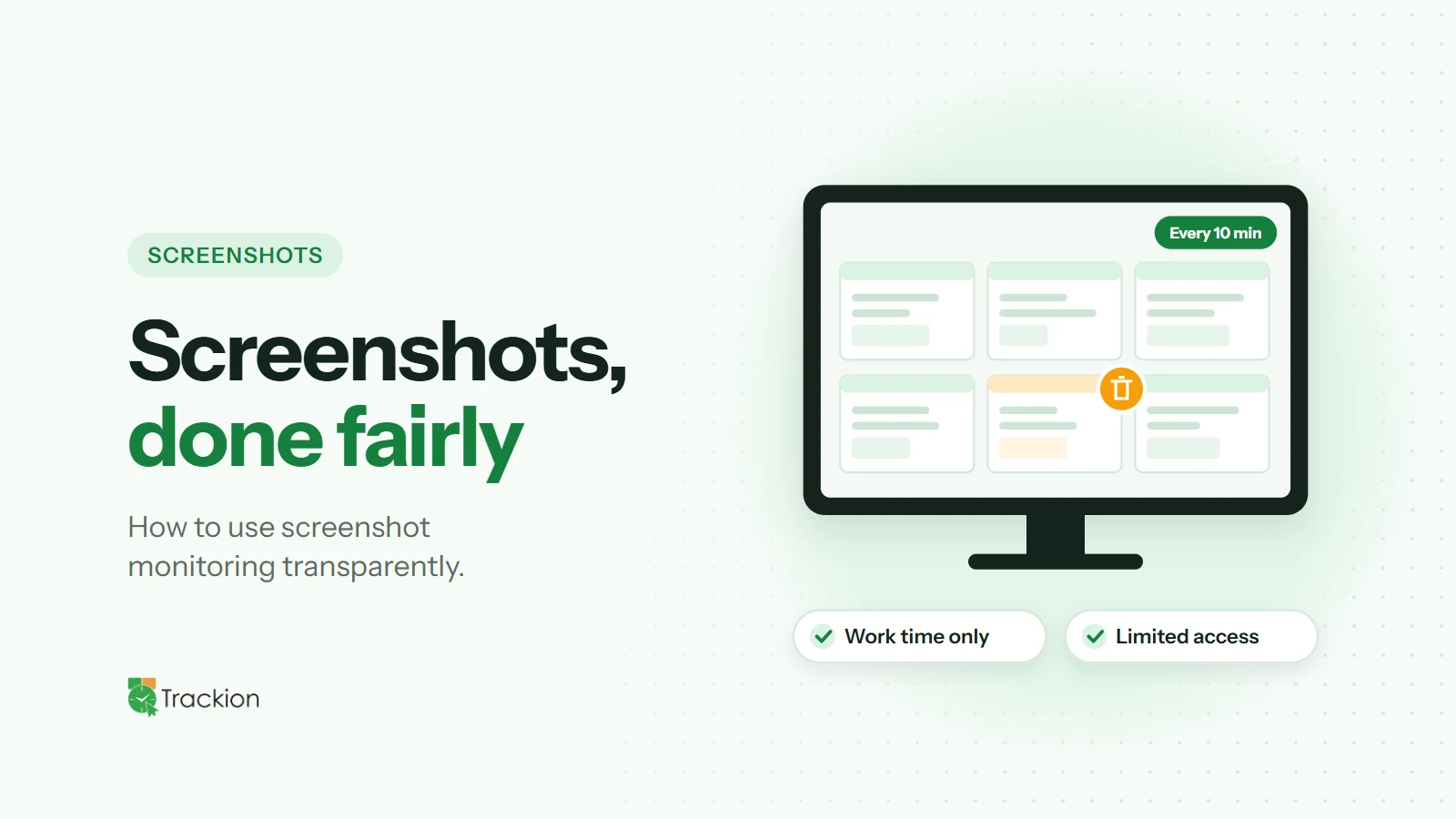
Screenshot frequency is the setting that matters most for how monitoring feels. A screenshot every few minutes gives a reasonable sample of the workday without capturing every moment. Choose the longest interval that still meets your purpose, and apply it consistently across the team.
Tell People Before You Start
Nobody should discover screenshot monitoring by accident. Explain that screenshots are taken, how often, which screens are included and who can see them. Put the details in your employee monitoring policy and walk through it with the team.
Limit Screenshots to Working Time
Screenshots should only be captured during active work sessions. When the timer is off, nothing should be recorded. This simple rule removes one of the biggest concerns people have: that personal time will be captured.
Give Employees Some Control
Accidents happen. Someone opens a personal message or a banking page during work time. Allowing employees to delete their own screenshots within a limited window shows respect and reduces anxiety, while still keeping the overall record intact.
Restrict Who Can See Screenshots
Screenshots should only be visible to people with a genuine need. Typically that means the employee themselves, their direct manager and, where necessary, HR. Avoid giving broad access to everyone with a management title.
Keep Them Only as Long as You Need
Screenshots are among the most sensitive data you hold. Set a retention period that matches your purpose, for example long enough to cover a billing cycle, and delete older images on schedule. Less stored data means less risk.
Use Screenshots for Context, Not Gotchas
Screenshots are most useful when they support a conversation, not when they are used to catch someone out. If something looks unusual, start by asking. There is often a simple explanation, such as research, a blocked task or a technical problem.
How Trackion Handles Screenshots
Trackion takes screenshots every 3, 5 or 10 minutes, at the interval your organization chooses, and captures every monitor. Screenshots are only taken during tracked work sessions, and admins can let employees delete their own screenshots for a set number of days.
Role-based access means managers only see the people in their own groups, retention settings remove older screenshots on schedule, and screenshots are never shared with AI apps connected through the Trackion AI Assistant.
Final Thoughts
Screenshot monitoring works best when it is purposeful, proportionate and transparent. Choose a sensible interval, tell your team, limit access and retention, and use screenshots to understand work rather than police it. Do that, and screenshots become a helpful layer of context instead of a source of tension.